If the App is not in English you may change language in iOS App Settings. Show me how…
Upon first run of the App you are prompted to accept the conditions of use. Next you can go to Settings to setup a connection to Z21(TM) compatible DCC station.
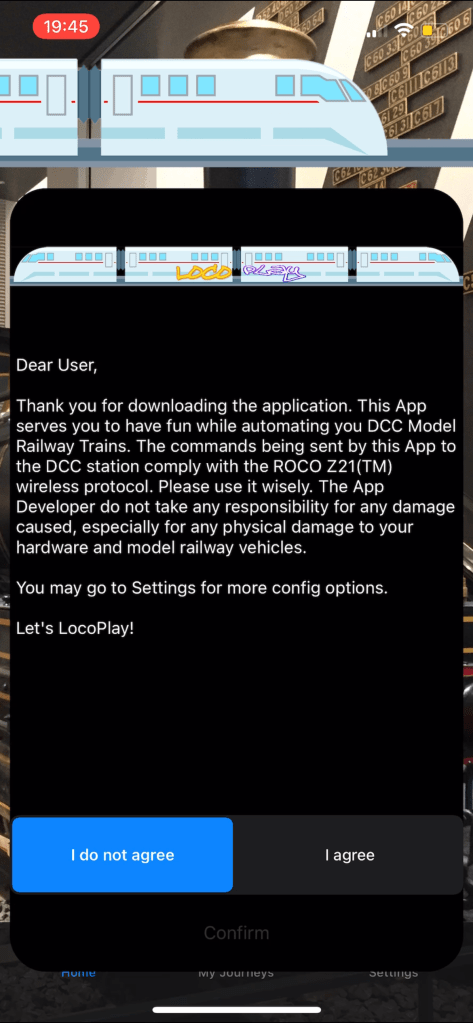
To proceed to use the app please read the information and if you agree select “I agree” and tap “Confirm”. If you don’t agree you may exit the app.
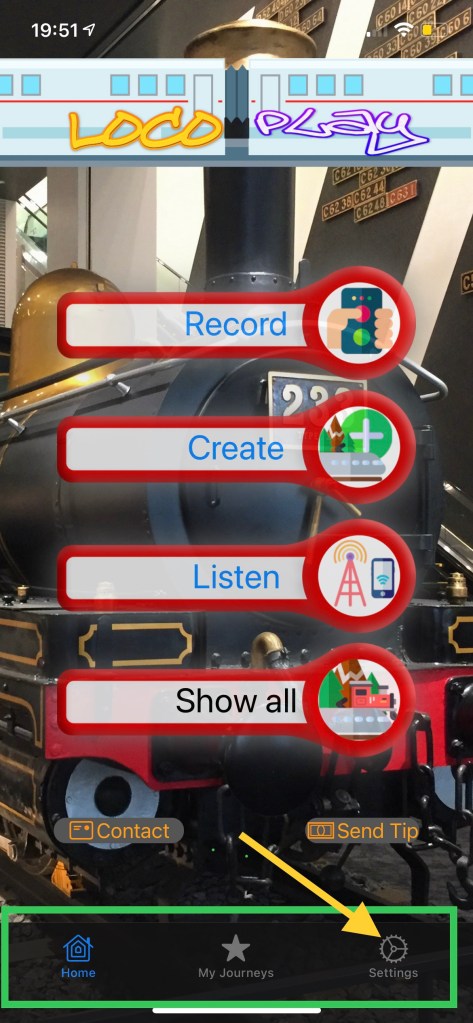
If you confirm the agreement the Main Screen will be dsplayed. You may go to the App Settings to setup you connection to the DCC station.
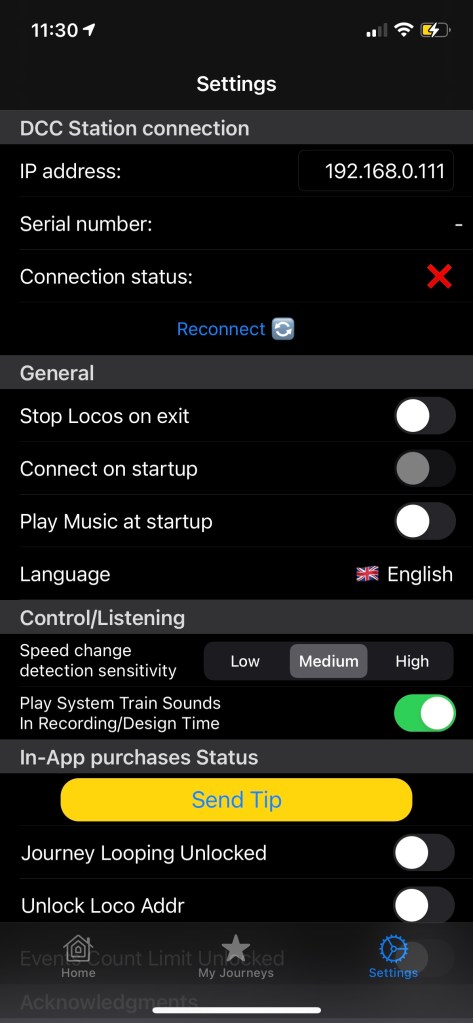
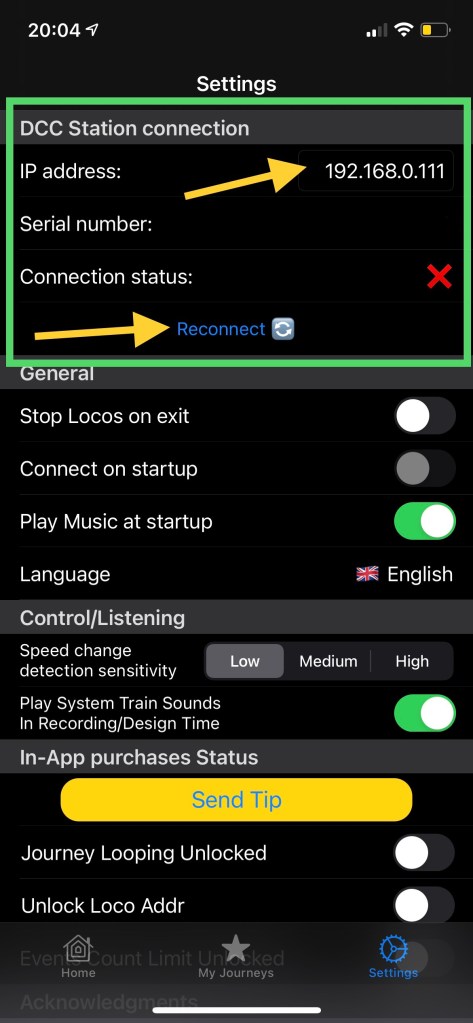
If you’re not connected to the Z21-compatible WiFi the Connection Status will be displayed as X. In that case please proceed to iOS WiFi settings and connect to a Z21 WiFi network (or compatible, e.g. Railbox).
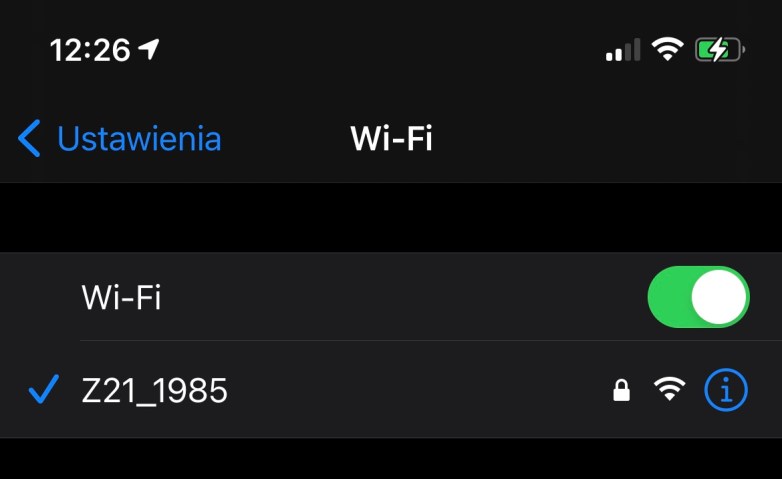
Once you’re connected to the WiFi, go back to the LocoPlay Settings and make sure that the IP address is correct; for Z21 the default IP = 192.168.0.111 (For Raibox could be 192.168.4.111) unless you had set your own. You can edit the IP and then press “Reconnect”.
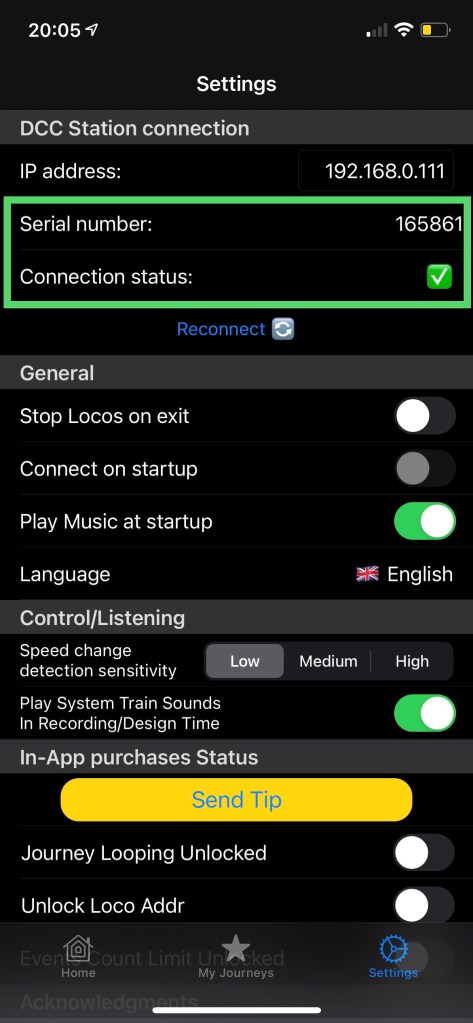
Once successfully connected the Connection status will change to green and the DCC station’s Serial number will be shown.
If you didn’t connect to the DCC station you are still able to use the App, create Journeys and Events being offline your DCC station. However to execute the Journey you must be connected because the App communicates with the DCC station by sending requests and receiving responses.

 LocoPlay App