The power of the LocoPlay App lies in the ability of controlling one or more Locos at a time, recording the Events and replaying them so the trains are moving automatically.
Once you’ve done your First Journey you may continue to the Steering and Record Center.
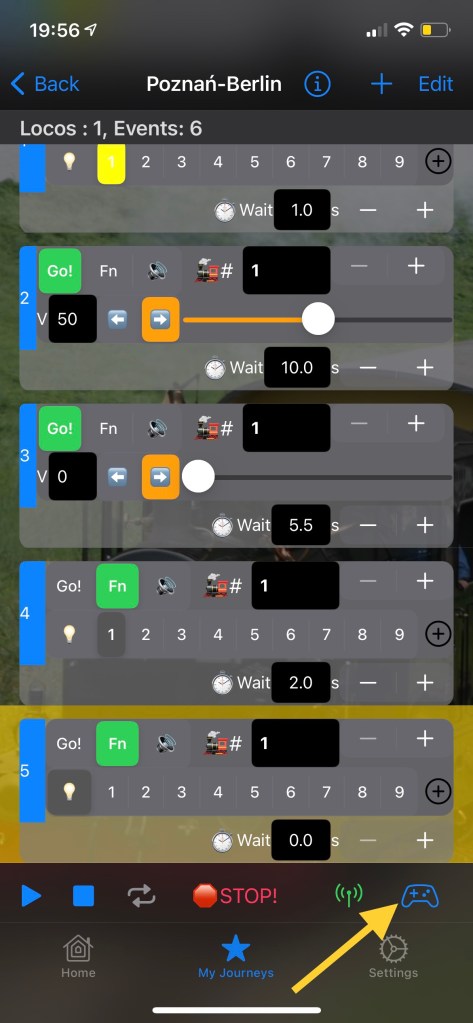
Open a Journey and make sure there is at least one event with Loco address. Open the Control and Record Center by tapping on the gamepad icon in the bottom-right corner:
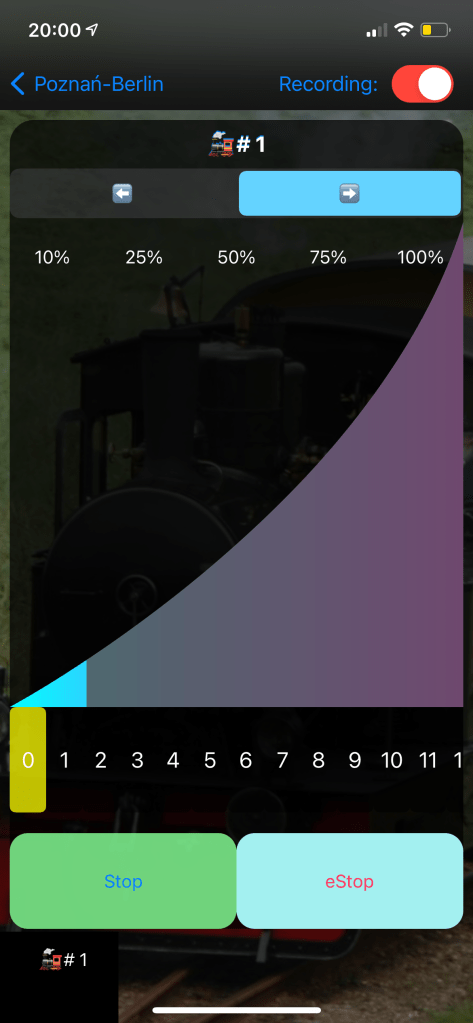
If Only one Loco address is used in the Journey the Control Panel will look like this:
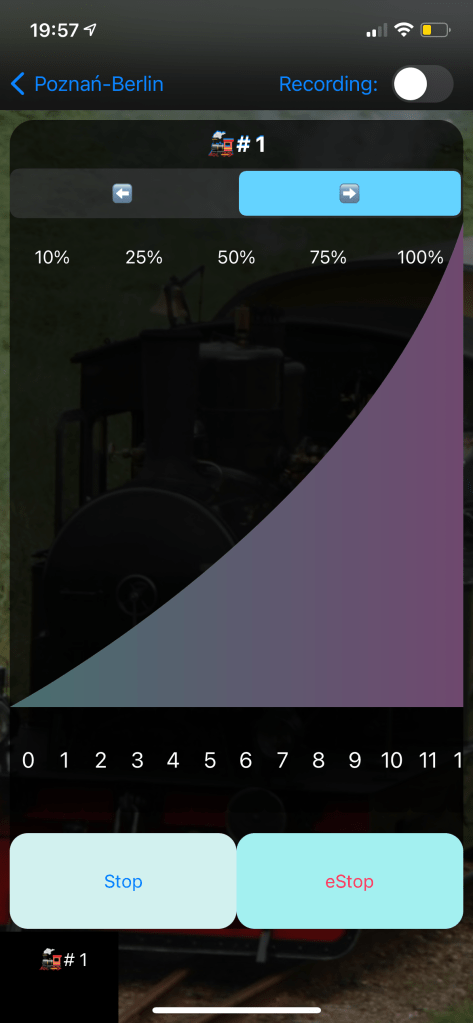
To start recording your activities (new Events) tap the Record switch button at the top right corner.
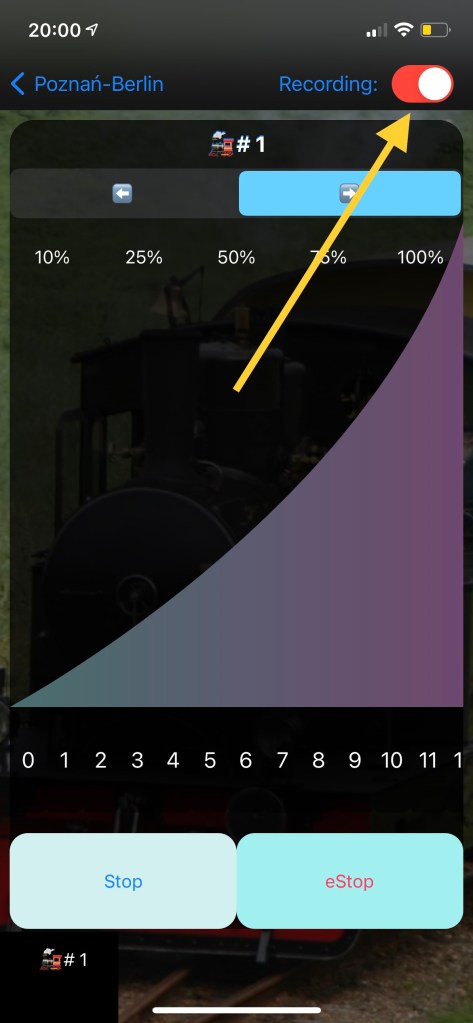
You may start recording Events now by adjusting speed, changing drive direction or switching functions. If you’re connected to the DCC station the Loco with the given address will react and will be controlled by your activities. Otherwise the Events will only be recorded and addes to the list in the Journey, so you can use this feature being offline from you DCC command station. Let’s play then:
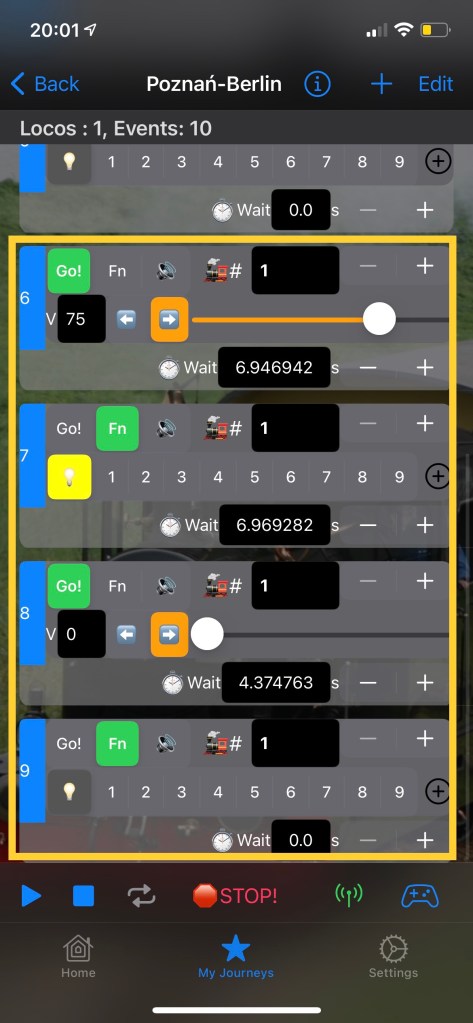
Set the speed – Tap on the 75%. The speed bar will be animated showing acceleration.

Turn on Function F0 (Lights)
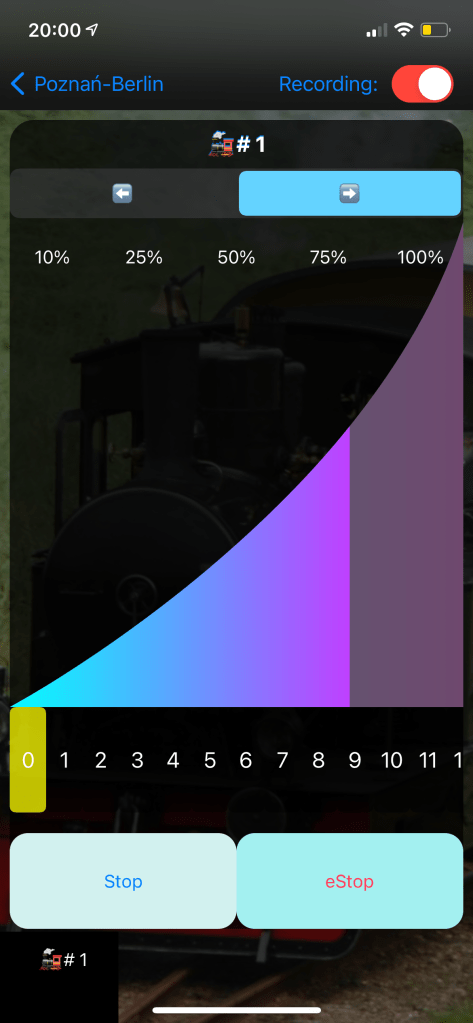
Stop the Train by pressing Stop button. The Speed bar will be animated while going down.
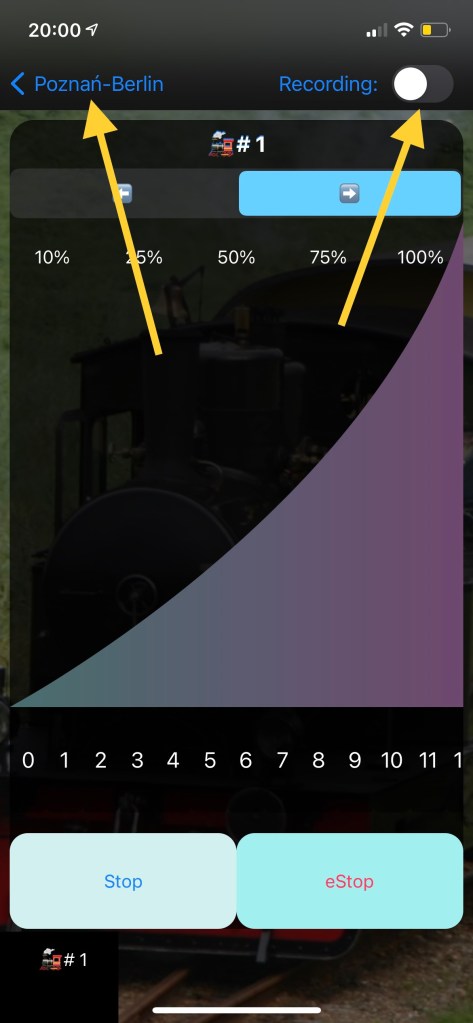
You may stop recording by switching “Record” switch or going back to the Journey screen.
Here’s what your Journey will look like. You can press Play and see what happens.
Please watch the video demonstrating this from scratch:
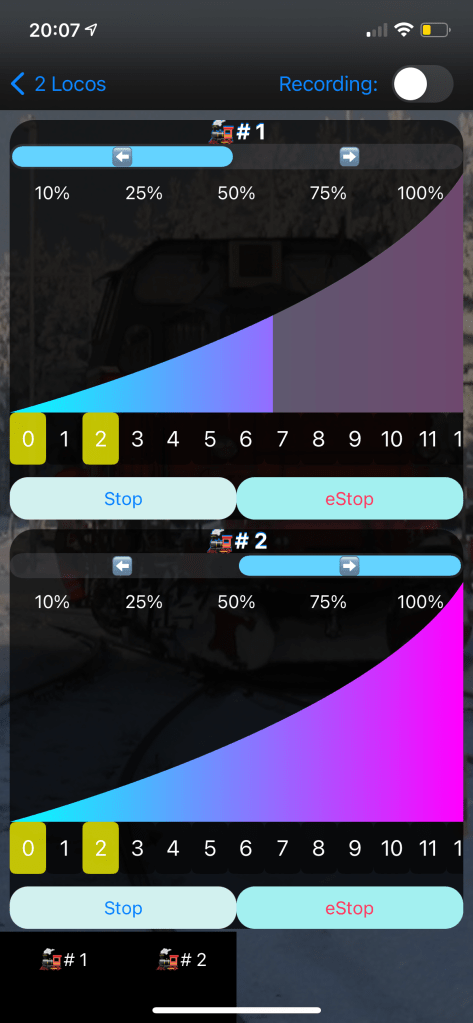
Two Locos – example
Control and Record Center with two locos.
Horizontal orientation
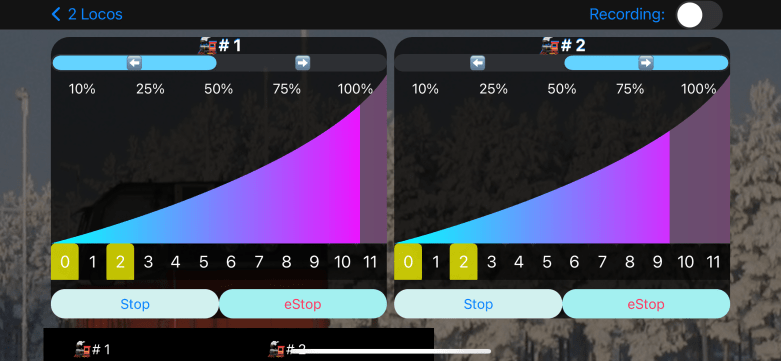
Vertical Orientation

 LocoPlay App