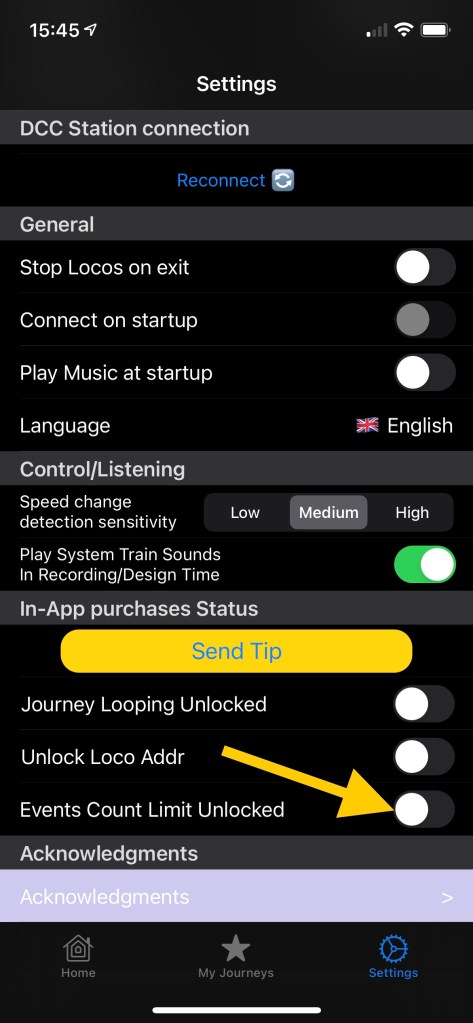
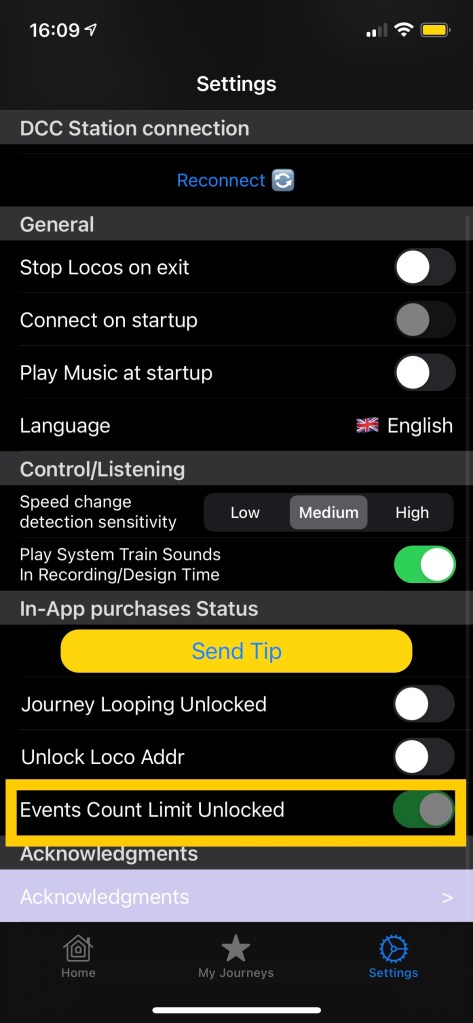
The Settings screen is divided into following sections :
- DCC Station connection – enabling setting IP address and reconnecting
- General – language and App behavior on startup and exit
- Control/Listening
- In-App purchases Status – enabling purchasing or restoring extension features
- Acknowledgments
DCC Station connection
The prerequisite to set the DCC IP address is to be connected to the local Z21 WiFi network – show me how…
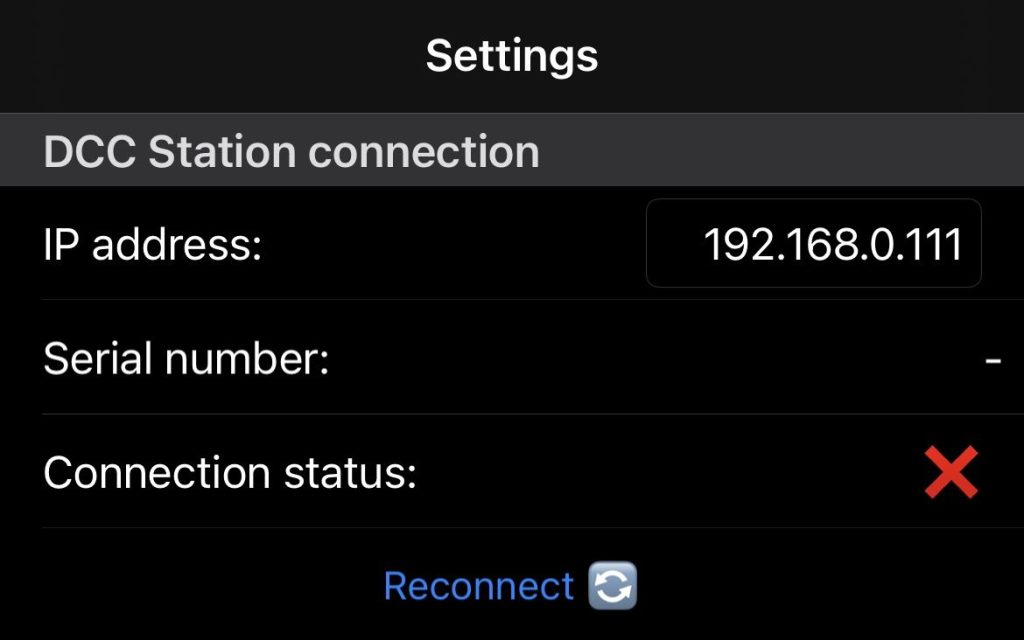
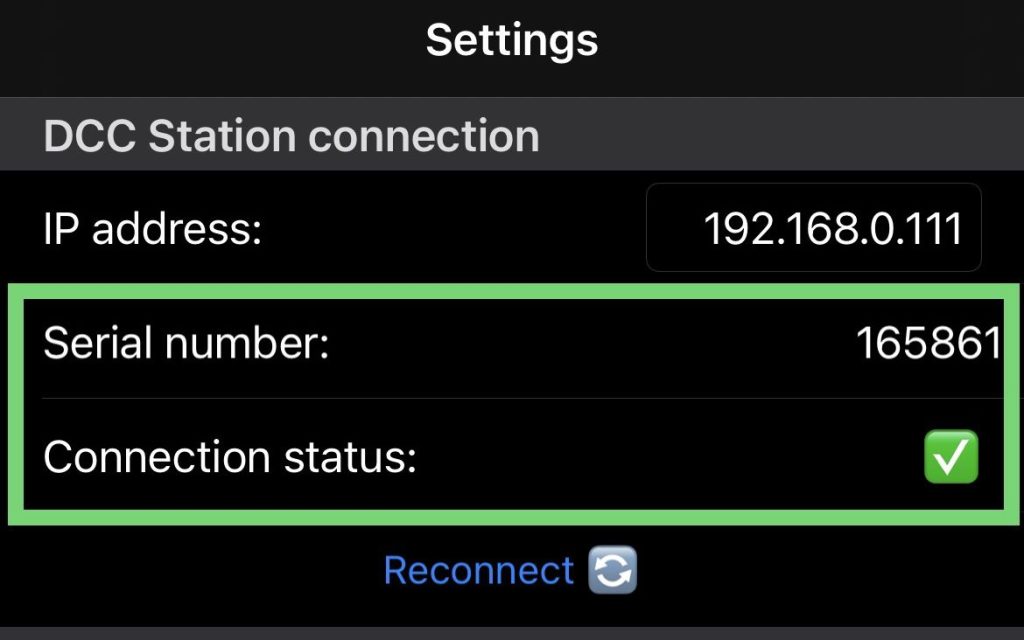
Once you’re connected to the WiFi, go back to the LocoPlay Settings and make sure that the IP address is correct; for Z21 the default IP = 192.168.0.111 (For Raibox could be 192.168.4.111) unless you had set your own. You can edit the IP and then press “Reconnect”. Once successfully connected the Connection status will change to green and the DCC station’s Serial number will be shown.
General
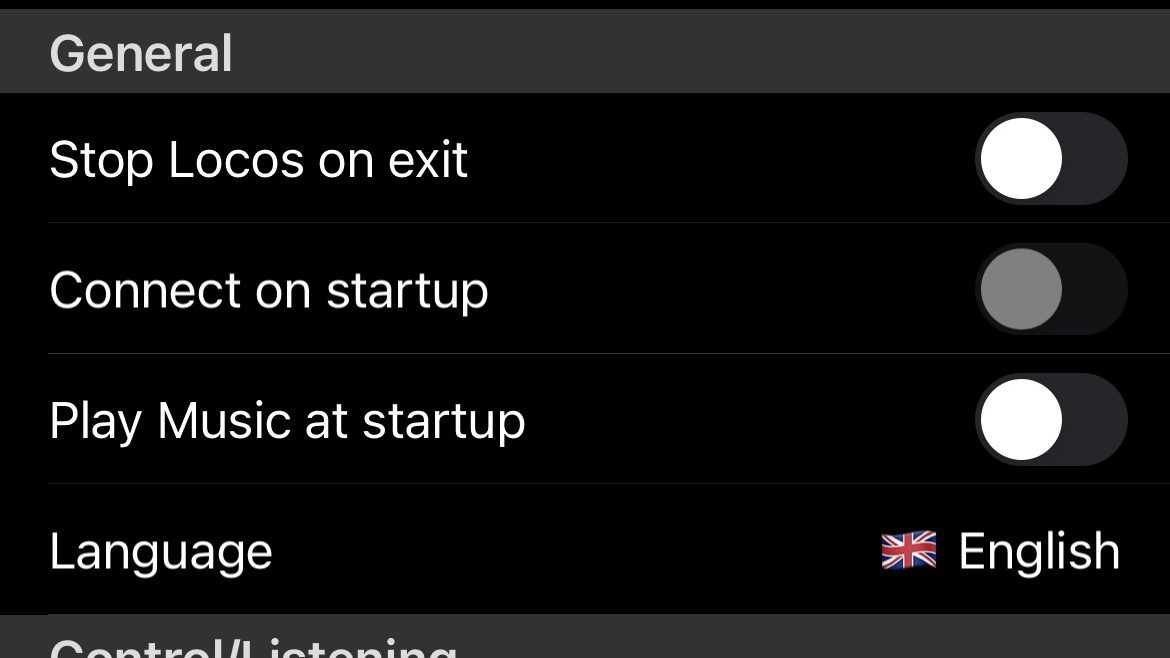
- Stop Locos on Exit – When you exit LocoPlay by going to the main iPhone screen or switch to another app, this option forces emergency stop for all loco addresses that are a part of a Journey being played, recorded or edited.
- Connect on startup – always off just to inform that the app doesn’t automatically connects to Z21 on startup. But if the Z21 WiFi is available and the IP is set correctly, when we start playing a Journey.
- Play Music at Startup – switch on/off playing music at startup.
- Language – set the application language; this will open iOS LocoPlay Language Settings. Show me how…
Control/Listening
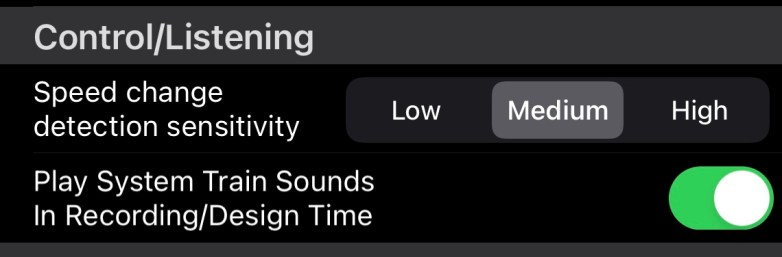
- Speed change detection sensitivity – while recording a Journey in Control and Record Center, you swipe the speed control to increase or decrease the train speed. The sensitivity means how much the speed should change, from the currently last recorded speed value, to be recorded as an Event in a Journey. The same pertains to listening for incoming speed changes invoked by external controlers for Locos in a Listen mode.
- Low Sensitivity – the speed change detection is not so sensitive to a speed changes. It will record an Event with a new speed value if the speed changes by more than 10%.
- Medium Sensitivity – A Speed change Event will be recorded if the speed changes by 5% or more.
- High Sensitivity – A Speed change Event will be recorded if the speed changes by 1% or more (almost continuous).
- Play System Train Sounds In Recording/Design Time – LocoPlay App provides with sample built-in sounds that can be played as Events in a Journey. This feature is useful if you don’t have a sound decoder in your loco. The setting turns on/off the sound playback while pressing a corresponding button in Control and Record Center or while adding Events manually.
In-App purchases Status
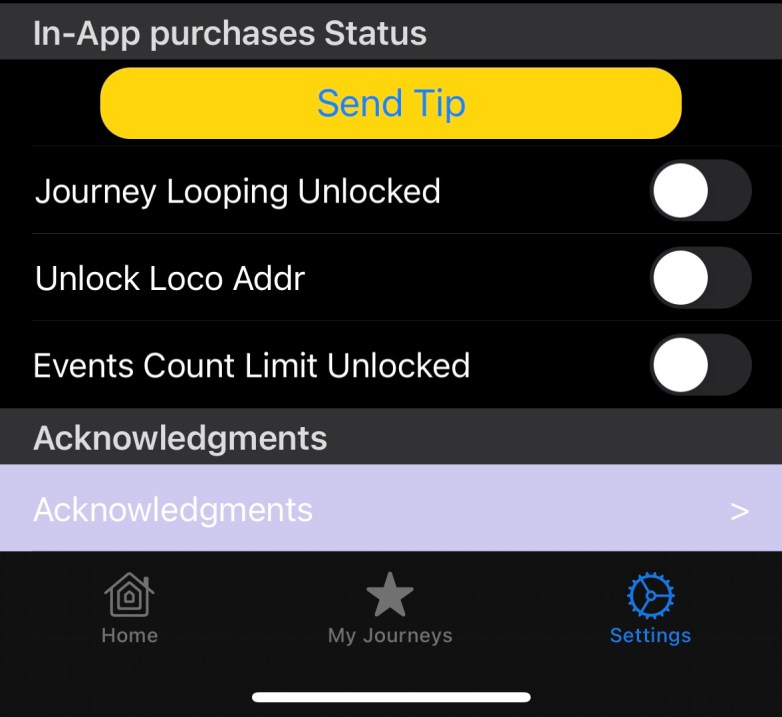
Here you can purchase extra features to the LocoPlay app and check if they have been purchased already and restore purcheses. You may also send a tip if you like my LocoPlay app This will heo me to maintain my Apple account. To purchase an item you must be connecter to the Internet. It means you need to switch your WiFi to the one having access to the Internet or use your mobile data. If you wish to unlock a feature simply tap the switch button.
- Send Tip – a button that you may use to send a tip that will support me to maintain my Apple Appstore account for next year. Thank you.
- Journey Looping Unlocked – Initially the looping of Journey is locked. If you unlock it you may play your Journey in a loop up to 100 times so your trains may run longer.
- Unlock Loco Addr – Initially you may use up to 2 loco addresses in a single Journey. E.g. #1 and #2 or #10 and #99 as long as among Events there are only 2 addresses being used. After unlocking you may use more than 2 addresses per Journey, even each Event may have a differet address.
- Events Count Limit Unlocked – Initially you may enter up to 12 Events per Journey. Unlocking Events count allows you to have 1000 Events in each Journey.
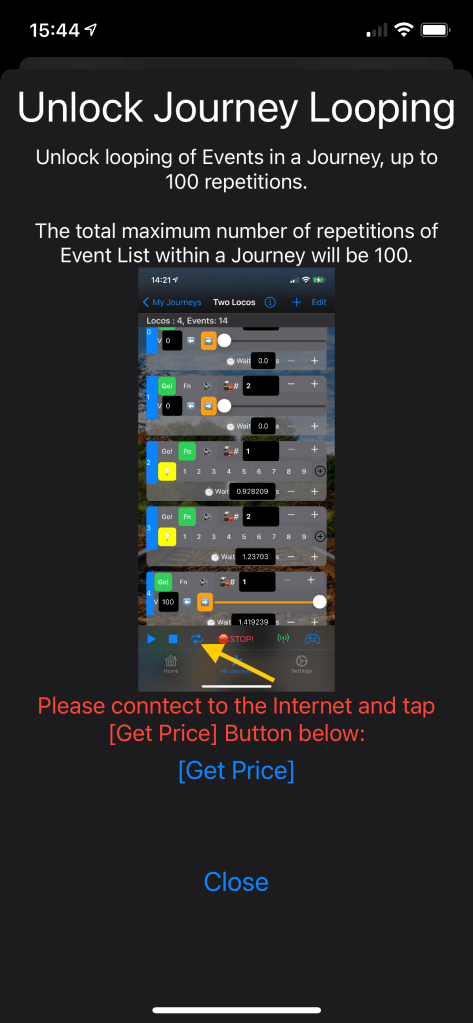
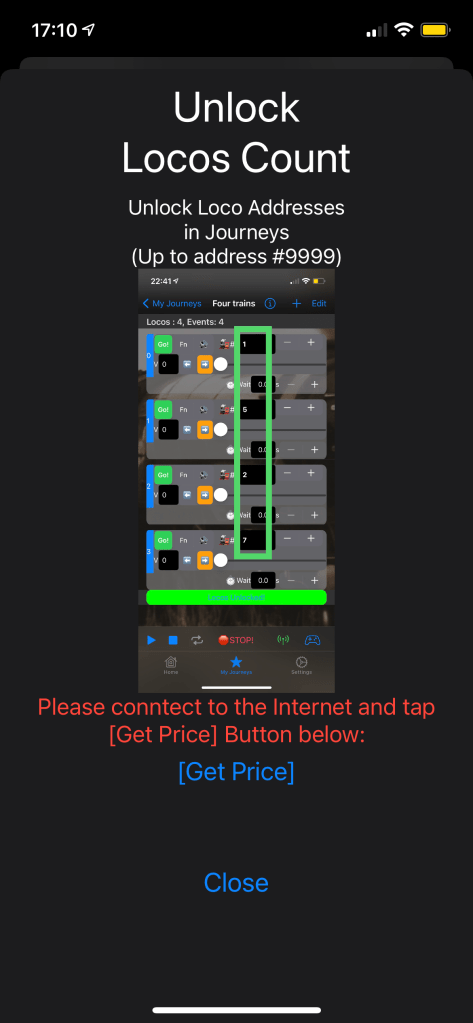
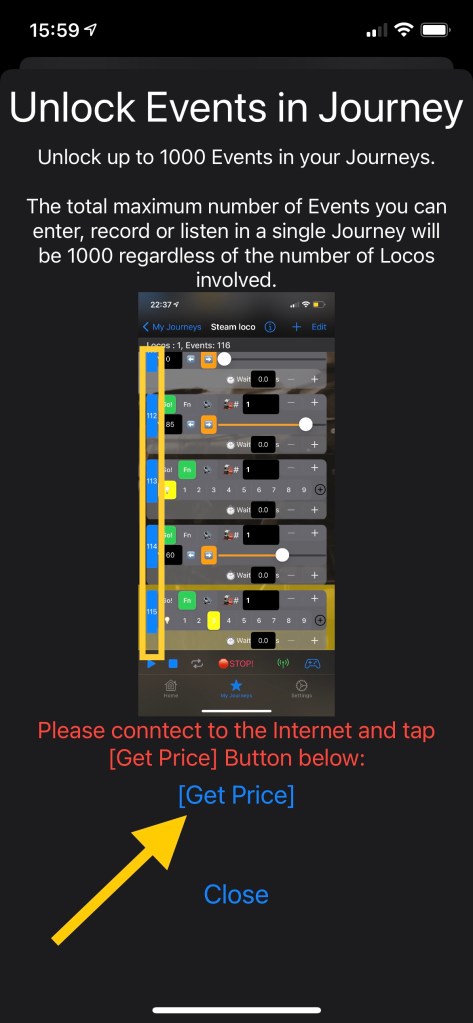
Example for unlocking Events count:
Let’s choose “Events Count Limit Unlocked” – press the switch button.
The in-app purchase window will pop up explaining the feature details. Tap on the image to zoom it.
Please make sure you’re connected to the Internet. The App asks you to do so. Once you’re connected please press [Get Price] button. The price will be fetched from the AppStore and presented to you.
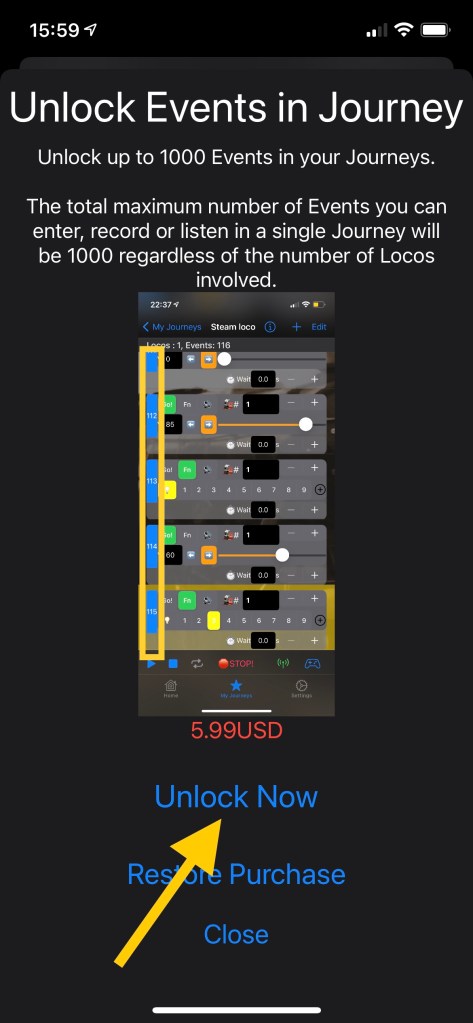
If you accept the price you may press “Unlock Now” / “Buy Now” button.
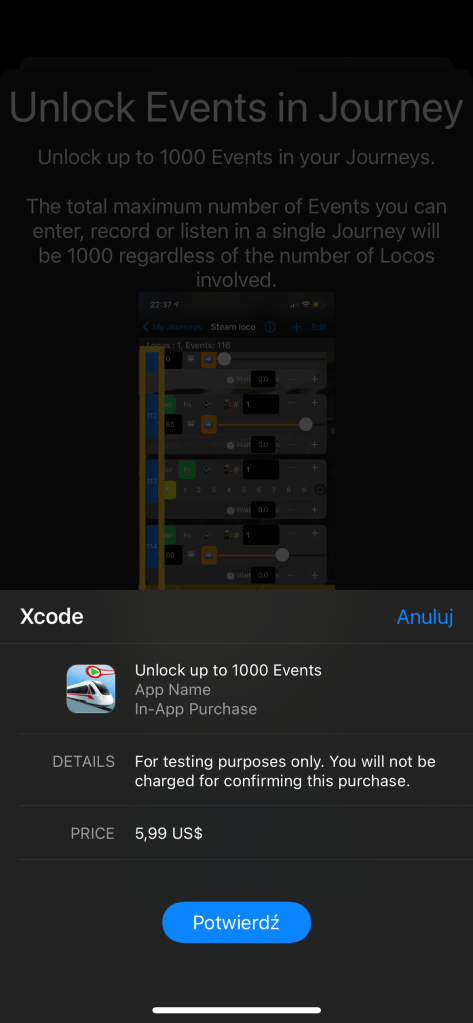
Now you may confirm your purchase. After successful processing the app will tell you that you may reconnect back to your Z21 DCC station.
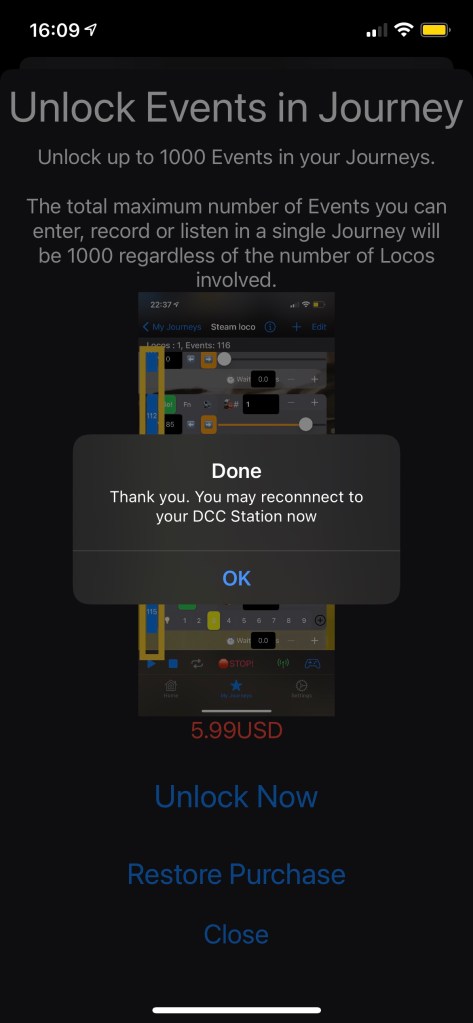
The switch button will turn on and becomes inactive indicating that you have purchased this item.

 LocoPlay App